How to Follow a Flight Using the AirNav Radar “Following” Feature

Following Feature
Whether you're tracking a family member, a friend, or an important business trip, the Following feature in AirNav Radar makes it easy to monitor a specific flight in real time. Instead of searching repeatedly, you can follow a flight and access all relevant information in one place.
This step-by-step tutorial explains how to use the Following feature in the AirNav Radar app.
Step 1: Open the AirNav Radar App

Following Feature
Start by opening the AirNav Radar app on your device.
Once inside the app:
- Tap on the Following option
- Select Add Flight

Following Feature
This will open the flight search interface.
Step 2: Choose How to Search for a Flight
You can follow a flight using two different methods:
Search by Flight Number
If you know the flight number:
- Select the Flight Number option
- Type the flight number
- Choose the correct flight from the results

Following Feature
Search by Route
If you do not know the flight number:
- Select Route
- Enter the departure and arrival airports
- Choose the desired flight from the list
Step 3: Select Scheduled or Live Flight

Following Feature
AirNav Radar allows you to follow:
- Scheduled flights (future) — useful for planning ahead
- Live flights — ideal when the aircraft is already in the air
Choose the appropriate option and select your flight.
Step 4: Follow the Flight

Following Feature
After selecting the flight:
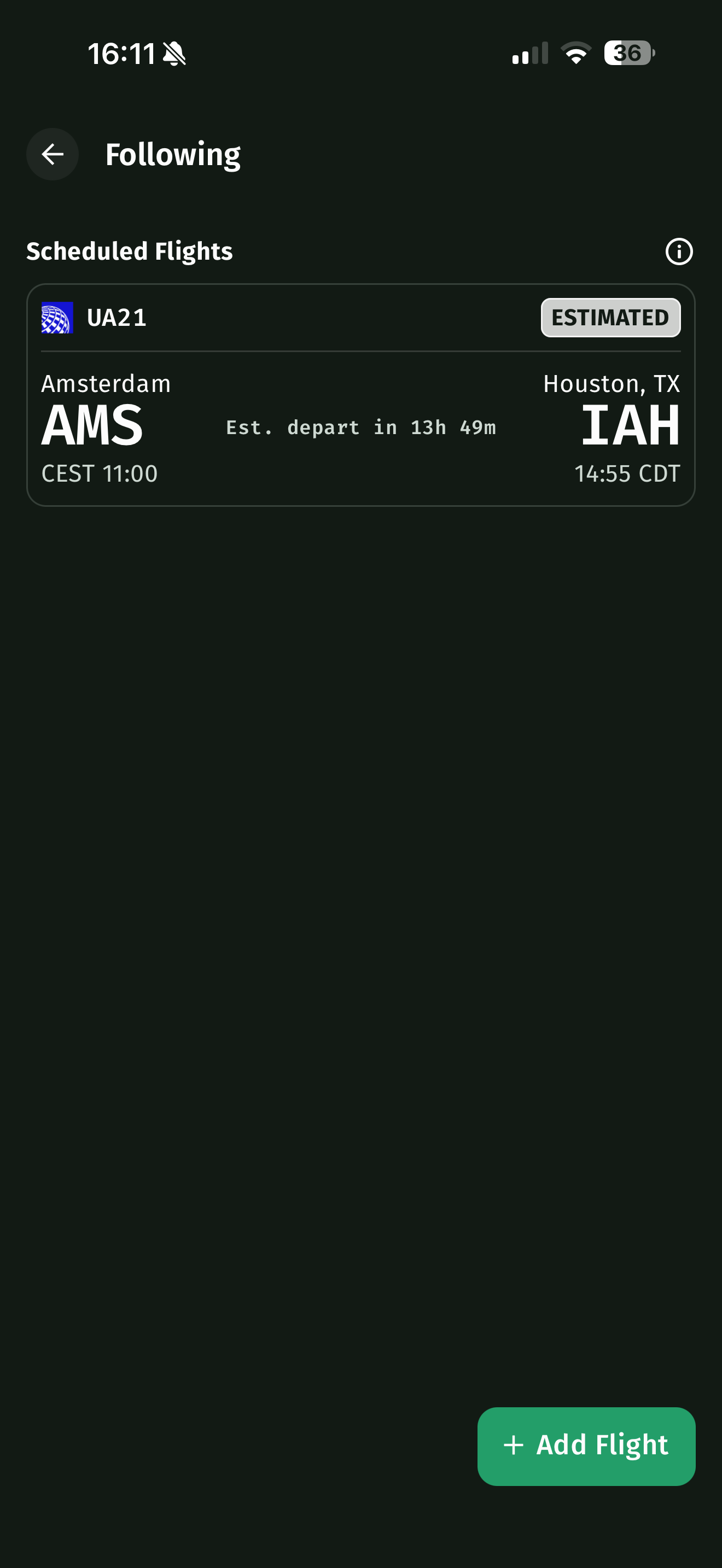
- Tap Follow
Following Feature
The flight will now be added to your Following list.
Step 5: View Flight Information
Following Feature
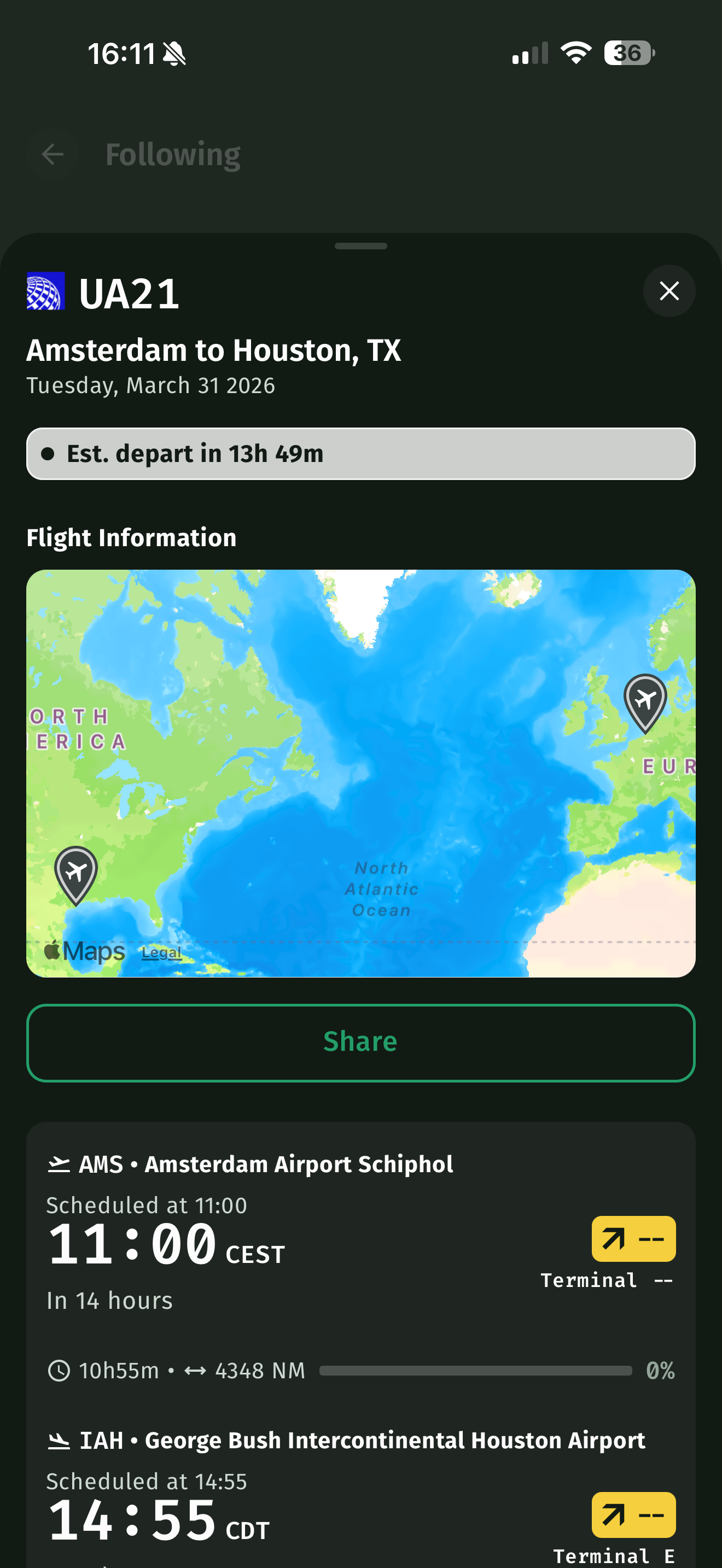
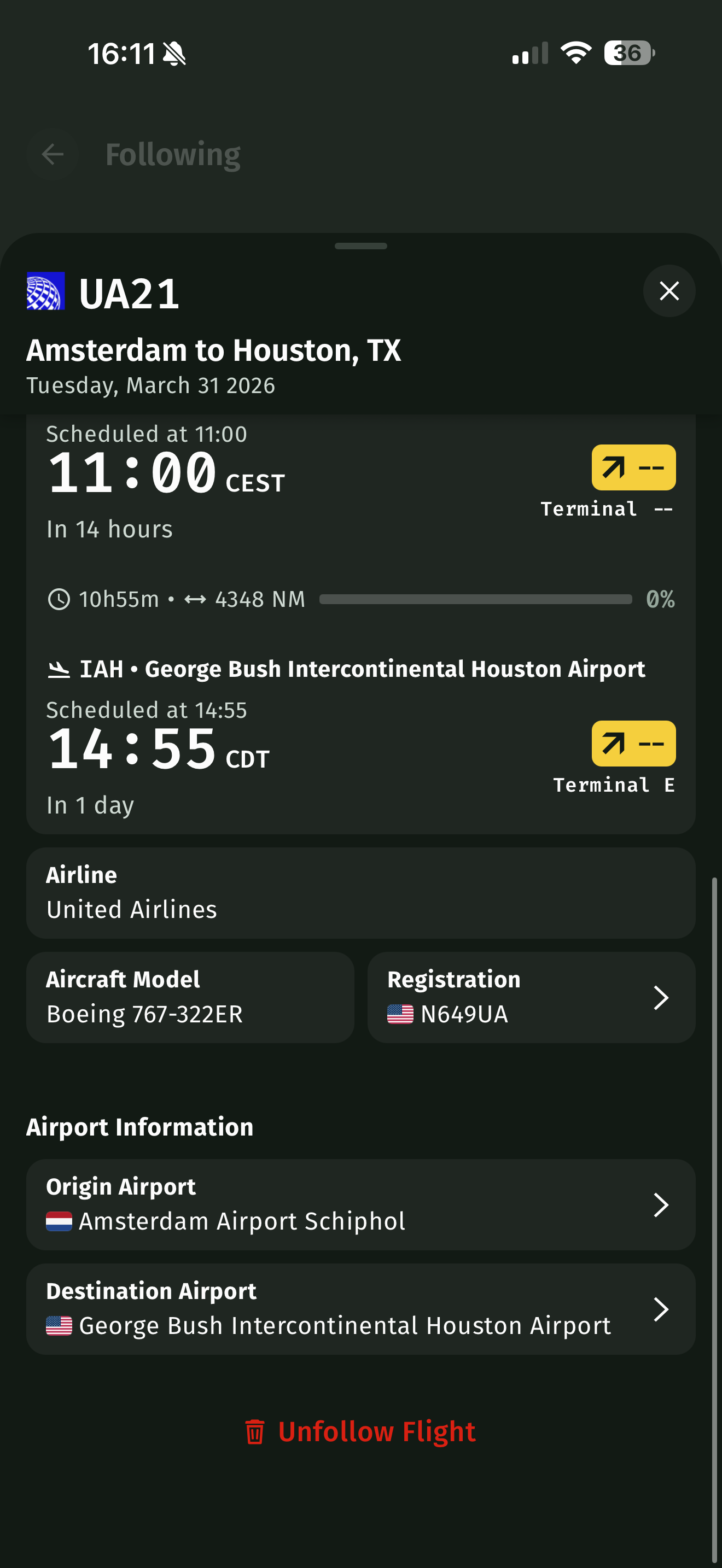
Once the flight is followed, a dedicated tab will appear showing:
- Departure and arrival information
- Aircraft type
- Flight status
- Live position
- Speed and altitude
- Additional operational details
This gives you quick access to all relevant flight information in one place.
Following Feature
Step 6: Share the Flight
You can easily share the flight with family, friends, or colleagues:
- Tap Share
- Send the flight link using your preferred platform
This allows others to follow the same flight in real time.
Step 7: Unfollow a Flight
To stop following a flight:
- Scroll to the bottom of the screen
- Tap Unfollow Flight
The flight will be removed from your Following list.